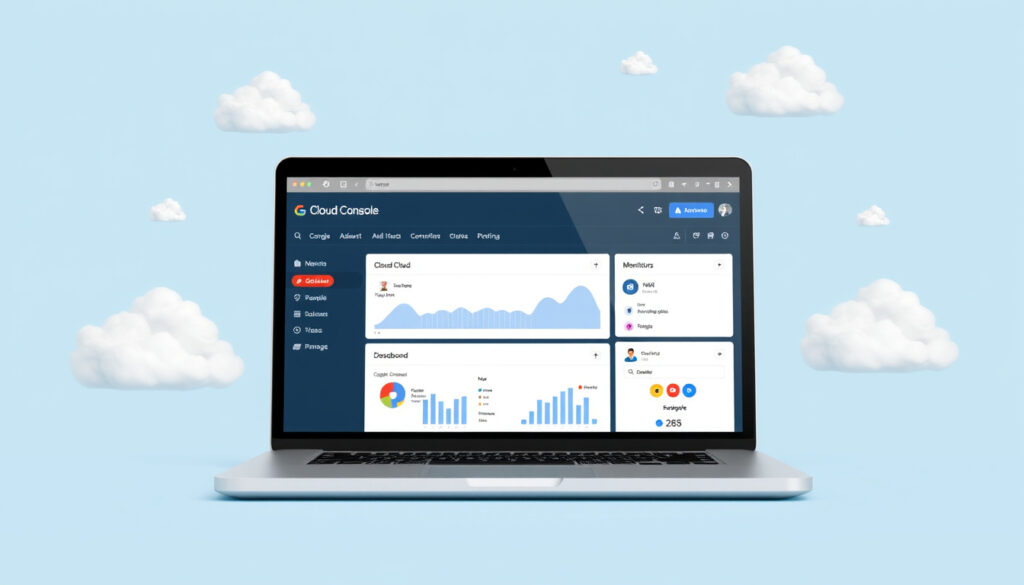
Google Cloud Console: What It Is, How to Use It, and Is It Free?
If you’ve ever stared at the Google Cloud Console and wondered where to start, you’re not alone — behind that dense dashboard lies a straightforward tool for managing cloud resources, with $300 in free credits for new customers and a console that costs nothing to open. This walkthrough covers how to sign in, create your first project, use the free tier safely, and avoid billing surprises.
Free trial credit: $300 for 90 days · Always free products: 20+ services, including Cloud Storage, Compute Engine, and BigQuery · Global regions: 200+ countries and territories · Supported services via console: Compute, Storage, Networking, Databases, AI/ML, and more
Quick snapshot
- Console is free to access (Google Cloud Free Trial page)
- $300 credit for 90 days for new customers (Google Cloud Free Trial)
- 20+ services with always free limits (Free Google Cloud features)
- Exact future changes to free tier limits (Free Google Cloud features)
- Long-term pricing adjustments for specific services (Free Google Cloud features)
- First released as Google Developers Console in 2011 (Google Cloud Console URL)
- Renamed to Google Cloud Console in 2016 (Google Cloud Console URL)
- Upgrade to a paid account to retain unused credit (Free Google Cloud features)
- Always free services continue even after trial ends (Free Google Cloud features)
Here are the key specifications of the Google Cloud Console at a glance.
| Attribute | Value |
|---|---|
| Initial release | 2011 (as Google Developers Console) |
| Current version | Google Cloud Console (renamed 2016) |
| URL | console.cloud.google.com |
| Free trial credit | $300 for 90 days |
| Always free products | 20+ services (e.g., Cloud Storage 5 GB, BigQuery 1 TB per month) |
What is the Google Cloud Console?
The Google Cloud Console is a web-based interface for managing your Google Cloud resources. It replaces the earlier Google Developers Console and is accessible from any modern browser at console.cloud.google.com (Google Cloud Console documentation).
Overview of the Google Cloud Console
- Provides graphical tools for compute, storage, networking, and more (Google Cloud Console overview)
- Central place to enable APIs, manage IAM roles, and view billing
- Built-in Cloud Shell terminal for command-line access
Key features at a glance
- Virtual machine management (Compute Engine)
- Storage bucket creation (Cloud Storage)
- Database provisioning (Cloud SQL, Firestore)
- Monitoring and logging via Operations Suite (Google Cloud Operations Suite)
The implication: beginners who master the project structure and free tier boundaries can avoid the confusion that stops most first-time users cold.
How do I open the cloud console?
Opening the console takes only a browser and a Google account. No downloads, no configuration.
Opening the console in a browser
- Navigate to console.cloud.google.com and sign in with any Google account (Google Cloud sign-in help)
- If you don’t have a project, you will be prompted to create one
Using Cloud Shell as an alternative
- Click the Cloud Shell icon (terminal icon) in the toolbar to open a browser-based terminal
- Cloud Shell includes `gcloud` CLI and standard Linux utilities (Google Cloud Shell documentation)
The implication: Cloud Shell is ideal for quick commands without leaving your browser.
How to create a Google Cloud Console?
The phrase “create a Google Cloud Console” actually means creating a project inside the console. Projects are the basic organizing entity in Google Cloud (Google Cloud resource hierarchy).
Creating a new Google Cloud project
- Sign in to the console at console.cloud.google.com
- Click the project selector dropdown at the top, then click ‘New Project’
- Provide a project name (e.g., “my-first-project”) and select a billing account
- Click ‘Create’ – the project appears within seconds (Google Cloud project creation guide)
Setting up the first service account
- Go to IAM > Service Accounts
- Click ‘Create Service Account’, assign a name, and choose roles (e.g., Viewer)
- Generate a JSON key for programmatic access (IAM service accounts documentation)
The catch: Every project needs a billing account attached, even if you plan to use only free tier services.
Is Google Cloud Console free to use?
The console itself is free to access — charges apply only to underlying cloud services. Google Cloud offers two kinds of free usage: a Free Trial and an Always Free tier (Google Cloud Free Trial and Free Tier).
Free tier vs. free trial
- Free Trial: $300 credit for 90 days for new customers
- Always Free: 20+ services with monthly usage limits that never expire
- Both require a billing account but you will not be charged until you activate your full paid account (Google Cloud Free Trial terms)
What is included in the always free products
- Cloud Storage: 5 GB-months (regional, in us-east1, us-west1, us-central1) (Free features documentation)
- Compute Engine: 1 f1-micro VM per month (30 hours) in select regions
- BigQuery: 1 TB of query data per month
- Cloud Source Repositories: up to 5 users, 50 GB storage, 50 GB egress (Free features documentation)
What this means: you can run a small website, a database, and analytics queries without spending anything, as long as you stay inside the free tier boundaries.
What can I do with a cloud console?
The console is a centralized hub for deploying and managing cloud infrastructure. Here’s what you can do day one.
Manage compute resources
- Launch virtual machines on Compute Engine with custom machine types (Compute Engine overview)
- Autoscale instances and manage load balancers
Configure storage and databases
- Create Cloud Storage buckets with fine-grained access controls
- Provision Cloud SQL (MySQL, PostgreSQL), Firestore, or Bigtable (Google Cloud Databases)
Monitor and log activities
- Use Cloud Monitoring dashboards to track CPU, memory, and network
- Set up alerts and budgets to avoid surprise charges (Cloud Monitoring docs)
The pattern: Everything starts in the console — from enabling the Cloud Storage API to assigning IAM roles to team members. It’s the launchpad for all Google Cloud services.
Do I need to pay for Google Cloud Console?
No direct fee exists for using the console. You pay only for the resources you consume (Google Cloud Pricing overview).
Understanding console cost vs. service cost
- The web interface, Cloud Shell, and API access via the console have no cost
- Every service has its own pricing — e.g., Compute Engine per-second billing, Cloud Storage per-gigabyte
- Free tier services do not incur charges within usage limits (Google Cloud Free Tier)
How to monitor billing from the console
- Go to Billing > Payment Overview to see current costs and credits
- Set up budget alerts in Billing > Budgets & alerts to get email notifications (Google Cloud budgets guide)
- Use the Cost Table report to break down spend by project and service
The catch: exceeding free tier limits or provisioning resources in non-free regions triggers charges immediately, so budget alerts are essential from day one.
Upsides
- Free access to the console and all management features
- Always free tier with 20+ services for small projects
- Easy billing controls and budget alerts
- Cloud Shell eliminates local setup
- Global infrastructure with low latency
Downsides
- Free tier limited to specific US regions for storage
- Billing account required even for free usage
- Some services can incur costs if limits exceeded
- Learning curve for IAM and project hierarchy
Confirmed facts
- Google Cloud Console is free to access (Google Cloud Free Trial page)
- Free trial provides $300 credit for 90 days (Google Cloud Free Trial)
- Always free services exist with monthly usage limits (Free Google Cloud features)
- Projects are the core organizational unit (Google Cloud resource hierarchy)
What’s unclear
- Exact future changes to free tier limits
- Long-term pricing adjustments for specific services
- Whether always free services might change their specific operating limits over time
- Specific regional availability changes for always free services
“The Google Cloud Console is a web interface for managing your Google Cloud resources.”
— Google Cloud Official Documentation (Google Cloud Console overview)
“You will not be charged until you activate your full paid account.”
— Google Cloud Free Tier page (Google Cloud Free Trial)
“Cloud Storage Free Tier includes 5 GB-months of regional storage per month in us-east1, us-west1, and us-central1.”
— Free Google Cloud features documentation (Google Cloud Free Tier details)
For a new developer or small business looking to experiment with cloud infrastructure without upfront investment, the Google Cloud Console is a solid starting point. The trade-off is clear: you get powerful tools for free, but only within regional and usage boundaries. For most test workloads and MVPs, the free tier offers more than enough runway.
youtube.com, blogs.curiositytech.in, dev.to, youtube.com, teleglobals.com
Frequently asked questions
How do I log in to the Google Cloud Console?
Go to console.cloud.google.com and sign in with a Google account. If you don’t have a project, you’ll be prompted to create one.
What is a Google Cloud project?
A project is the basic organizational unit in Google Cloud. It contains all resources (VMs, storage, APIs) and has its own billing settings and permissions.
How do I add a payment method to my billing account?
Go to Billing > Payment settings and add a credit card or bank account. A billing account is required to access the free tier.
How can I enable an API from the console?
In the console, use the search bar to find the API, click Enable, and add any required scopes to your project.
How do I share access to my console with other users?
Use IAM to add users by email and assign roles (e.g., Viewer, Editor, Owner). Each role has specific permissions.
What is Cloud Shell and how do I use it?
Cloud Shell is a browser-based terminal with gcloud and other tools preinstalled. Click the Cloud Shell icon in the console toolbar to start it.
How do I get 200GB of free cloud storage?
Google Cloud does not offer 200GB free storage. The free tier includes 5 GB of Cloud Storage. Consider the Free Trial credit for additional storage.
More related posts
 Alexis Bledel: Biography, Ethnicity, Children, and Career
 Reece Walsh Wife: Is NRL Star Married or Single?
 Isa Briones: Ethnicity, Nepo Baby Claim, and Career Facts
 Motel Near Me: Compare Costs with Hotels & Hostels
 Tyrion Lannister Guide: Wit, Fate & Legacy
 Billy Crudup Relationship History: Who He Left for Claire Danes
 Does Heat Protectant Spray Work? How to Use It Right
 Naomi Scott: Children, Net Worth, and LGBTQ Support
